
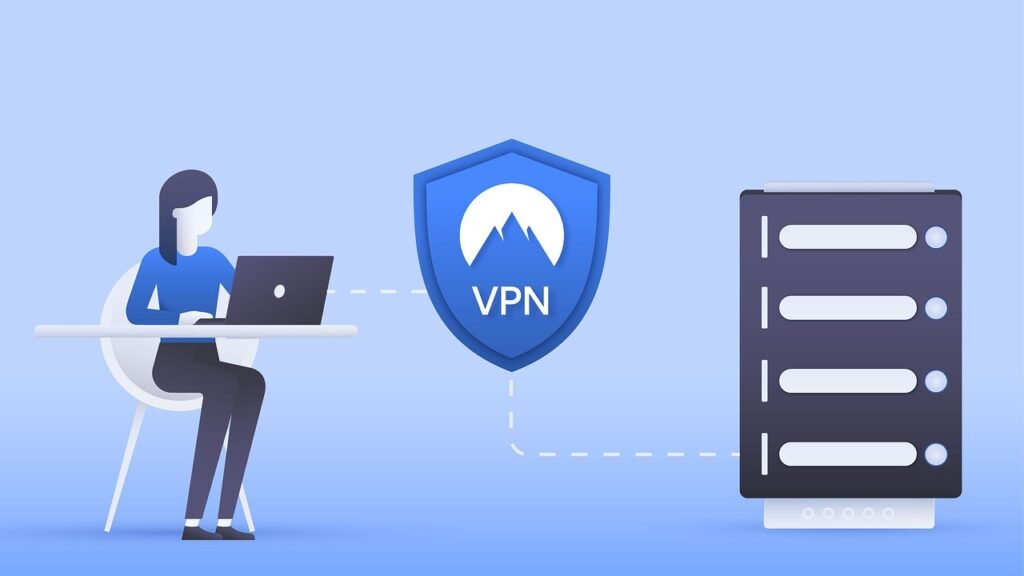
Protecting your digital life begins with securing your Wi-Fi network. In today’s interconnected world, a vulnerable Wi-Fi network is like leaving your front door wide open to cyber threats. From hackers stealing personal information to unauthorized access to your smart devices, the risks are real. This comprehensive guide will provide you with the knowledge and practical steps necessary to fortify your Wi-Fi security and safeguard your data.
Understanding Wi-Fi Security Risks
Common Wi-Fi Vulnerabilities
Wi-Fi networks, while convenient, are susceptible to various security vulnerabilities. Understanding these risks is the first step in protecting your network.
- Weak Passwords: Using easily guessable passwords like “password123” or your birthdate is a major vulnerability.
- Outdated Firmware: Router firmware updates often include crucial security patches. Neglecting these updates leaves your network exposed.
- Default Router Settings: Many routers come with default usernames and passwords that are widely known. Hackers can exploit these settings.
- Unsecured Guest Networks: A poorly configured guest network can provide unauthorized access to your main network.
- Man-in-the-Middle Attacks: Hackers can intercept data transmitted over unencrypted Wi-Fi connections, stealing sensitive information like login credentials and credit card details.
- MAC Address Spoofing: Malicious actors can disguise their device’s identity to gain unauthorized access to your network.
The Impact of a Compromised Wi-Fi Network
The consequences of a compromised Wi-Fi network can range from minor annoyances to severe financial and personal damage.
- Data Theft: Hackers can steal sensitive information like passwords, financial data, and personal files.
- Identity Theft: Stolen personal information can be used to open fraudulent accounts or commit other forms of identity theft.
- Malware Infections: A compromised network can be used to spread malware to connected devices, including computers, smartphones, and IoT devices.
- Unauthorized Access to Devices: Hackers can gain control of your smart home devices, such as security cameras, thermostats, and smart locks.
- Legal Liability: If your network is used to commit illegal activities, you could be held liable.
- Slow Internet Speed: Unauthorized users can consume your bandwidth, slowing down your internet speed.
Securing Your Router
Changing Default Credentials
One of the most critical steps in securing your Wi-Fi network is changing the default username and password of your router. Most routers have a default username (often “admin”) and password (often “password” or blank) which are easily found online. Hackers target these default settings.
- Access the Router’s Configuration Page: Type your router’s IP address into your web browser’s address bar. This is usually found in your router’s manual or on a sticker on the device. Common IP addresses include 192.168.1.1, 192.168.0.1, and 10.0.0.1.
- Log In: Enter the default username and password.
- Change the Username and Password: Look for a settings page labeled “Administration,” “System Tools,” or something similar. Change both the username and password to something strong and unique.
- Strong Password Guidelines:
At least 12 characters long
A mix of upper and lower case letters
Numbers and symbols
Avoid personal information like your name or birthdate
Updating Router Firmware
Router manufacturers regularly release firmware updates to address security vulnerabilities and improve performance. Keeping your router’s firmware up-to-date is essential for maintaining a secure network.
- Check for Updates: Most routers have a built-in feature to check for and install firmware updates. Access your router’s configuration page and look for a “Firmware Update” or “Software Update” section.
- Enable Automatic Updates: If your router supports automatic updates, enable this feature to ensure that your router is always running the latest version of the firmware.
- Manual Updates: If automatic updates are not available, you may need to download the latest firmware from the manufacturer’s website and manually install it. Follow the instructions provided by the manufacturer carefully.
- Regularly Check for Updates: Even if you have automatic updates enabled, it’s a good idea to periodically check for updates manually to ensure that your router is up-to-date.
Disabling WPS
Wi-Fi Protected Setup (WPS) is a feature designed to simplify connecting devices to a Wi-Fi network. However, WPS has known security vulnerabilities and should be disabled.
- Why Disable WPS? WPS uses an 8-digit PIN that can be easily cracked by hackers. Once the PIN is compromised, they can gain access to your Wi-Fi network, even if you have a strong password.
- How to Disable WPS: Access your router’s configuration page and look for a “WPS” section. Disable the WPS feature. If you can’t find the WPS setting, consult your router’s manual or the manufacturer’s website.
Choosing a Strong Wi-Fi Password
Creating a Secure Password
Your Wi-Fi password is the first line of defense against unauthorized access to your network. Choosing a strong and unique password is crucial.
- Password Length: Aim for a password of at least 12 characters, and preferably longer.
- Password Complexity: Use a combination of uppercase letters, lowercase letters, numbers, and symbols.
- Avoid Personal Information: Do not use personal information such as your name, birthdate, address, or phone number in your password.
- Avoid Common Words and Phrases: Do not use common words or phrases, dictionary words, or easily guessable patterns.
- Use a Password Manager: Consider using a password manager to generate and store strong, unique passwords for all of your online accounts, including your Wi-Fi network.
Changing Your Wi-Fi Password Regularly
It’s a good practice to change your Wi-Fi password periodically, even if you haven’t experienced any security issues. This helps to prevent unauthorized access and keep your network secure.
- How Often to Change Your Password: Aim to change your Wi-Fi password every 3-6 months.
- When to Change Your Password Immediately: Change your password immediately if you suspect that your network has been compromised or if you have noticed any unusual activity on your network.
Using Strong Encryption Protocols
Understanding Encryption Types: WEP, WPA, WPA2, WPA3
Wi-Fi encryption protocols protect your data as it travels between your devices and the router. Using a strong encryption protocol is essential for securing your network.
- WEP (Wired Equivalent Privacy): An older and outdated encryption protocol that is easily cracked. Do not use WEP.
- WPA (Wi-Fi Protected Access): An improvement over WEP, but still vulnerable to attacks. Avoid using WPA if possible.
- WPA2 (Wi-Fi Protected Access 2): A more secure encryption protocol than WEP and WPA. Use WPA2 with AES (Advanced Encryption Standard) if possible.
- WPA3 (Wi-Fi Protected Access 3): The latest and most secure Wi-Fi encryption protocol. If your router and devices support WPA3, use it for maximum security.
Configuring Your Router for WPA3 or WPA2
Access your router’s configuration page and look for the “Wireless Security” or “Wi-Fi Security” settings. Choose WPA3 or WPA2 with AES encryption. If you have older devices that don’t support WPA3, you may need to use WPA2 for compatibility.
- Example: In many routers, you will find a dropdown menu labeled “Security Mode” or “Encryption Type.” Select “WPA3-Personal” or “WPA2-Personal (AES).”
- TKIP vs. AES: When using WPA2, choose AES (Advanced Encryption Standard) as the encryption algorithm. TKIP (Temporal Key Integrity Protocol) is an older and less secure algorithm.
- Mixed Mode: Some routers offer a “WPA2/WPA3 Mixed Mode” which allows both WPA2 and WPA3 devices to connect to the network. However, this may reduce the overall security of your network.
Securing Your Network from Intruders
Enabling MAC Address Filtering
MAC address filtering allows you to create a list of authorized devices that are allowed to connect to your Wi-Fi network. Devices not on the list will be blocked from accessing the network.
- How to Enable MAC Address Filtering: Access your router’s configuration page and look for a “MAC Address Filtering” or “Access Control” section.
- Find Your Device’s MAC Address: The MAC address is a unique identifier assigned to each network adapter. You can find your device’s MAC address in the device’s network settings.
- Add Authorized MAC Addresses: Add the MAC addresses of all your authorized devices to the list.
- Enable Filtering: Enable the MAC address filtering feature.
- Important Note: MAC address filtering is not foolproof, as hackers can spoof MAC addresses. However, it can add an extra layer of security to your network.
Creating a Guest Network
A guest network provides internet access to visitors without giving them access to your main network and its connected devices. This helps to protect your personal data and prevent unauthorized access to your network.
- How to Create a Guest Network: Access your router’s configuration page and look for a “Guest Network” or “Guest Wi-Fi” section.
- Enable the Guest Network: Enable the guest network feature.
- Set a Separate Password: Set a separate password for the guest network. This should be different from your main Wi-Fi password.
- Disable Access to the Main Network: Ensure that the guest network is isolated from your main network. This will prevent guests from accessing your files, printers, and other connected devices.
- Limit Bandwidth: Consider limiting the bandwidth available to the guest network to prevent guests from consuming all of your internet bandwidth.
Conclusion
Securing your Wi-Fi network is an ongoing process. By understanding the risks and implementing the steps outlined in this guide, you can significantly improve your Wi-Fi security and protect your personal information from cyber threats. Remember to regularly review your security settings, update your router’s firmware, and stay informed about the latest security threats and best practices. A proactive approach to Wi-Fi security is essential in today’s increasingly connected world.







