
In today’s hyper-connected world, secure Wi-Fi is no longer a luxury, but a necessity. Whether you’re working remotely, managing your finances, or simply browsing the web, protecting your data from prying eyes is paramount. This guide provides a comprehensive overview of how to establish and maintain a secure Wi-Fi network, safeguarding your personal information and preventing unauthorized access. Let’s delve into the essential steps you can take to fortify your digital defenses.
Understanding Wi-Fi Security Threats
Common Wi-Fi Vulnerabilities
Wi-Fi networks, if not properly secured, can be susceptible to various threats. Understanding these vulnerabilities is the first step towards building a robust defense.
- Man-in-the-Middle Attacks: Hackers can intercept communication between your device and the Wi-Fi router, stealing sensitive information like passwords and credit card details. This often occurs on unsecured or public Wi-Fi networks.
- Wardriving: This involves driving around with a laptop or mobile device searching for unprotected Wi-Fi networks. Once found, these networks can be exploited for various malicious purposes.
- Evil Twin Attacks: Cybercriminals create a fake Wi-Fi network that mimics a legitimate one. Unsuspecting users connect to the fake network, unknowingly giving hackers access to their data.
- Packet Sniffing: Attackers use specialized software to capture and analyze data packets transmitted over the Wi-Fi network, potentially revealing usernames, passwords, and other sensitive information.
The Risks of Unsecured Wi-Fi
Using unsecured Wi-Fi poses significant risks to your privacy and security:
- Data Theft: Personal information, including usernames, passwords, financial details, and browsing history, can be stolen.
- Identity Theft: Stolen data can be used to impersonate you, open fraudulent accounts, or commit other forms of identity theft.
- Malware Infections: Unsecured networks can be used to distribute malware, infecting your devices with viruses, spyware, and ransomware.
- Legal Liability: If your network is compromised and used for illegal activities, you could be held legally responsible.
- Financial Loss: Stolen financial information can lead to unauthorized transactions and significant financial loss.
Securing Your Home Wi-Fi Network
Changing the Default Router Password and SSID
Most routers come with a default username and password, which are often widely known. Changing these immediately is crucial. Similarly, the SSID (Service Set Identifier), which is the network name, should be changed from the default.
- Example: The default username and password for many routers is “admin” and “password”. Change both immediately!
- Tip: Choose a strong password that is at least 12 characters long and includes a mix of uppercase and lowercase letters, numbers, and symbols.
- SSID: Avoid using personal information in your SSID, such as your name or address. Opt for something less revealing.
Enabling WPA3 Encryption
WPA3 (Wi-Fi Protected Access 3) is the latest and most secure Wi-Fi encryption protocol. If your router and devices support it, enable it.
- Benefits of WPA3: WPA3 offers improved encryption strength, better protection against brute-force attacks, and enhanced security for public Wi-Fi networks.
- Compatibility: Ensure all your devices support WPA3 before enabling it, as older devices may not be compatible.
- How to Enable: Access your router’s configuration page (usually by typing the router’s IP address into a web browser) and look for the Wi-Fi security settings. Select WPA3 if available.
Enabling the Firewall
Most routers have a built-in firewall. Make sure it’s enabled.
- Firewall Function: A firewall acts as a barrier between your network and the outside world, blocking unauthorized access.
- Configuration: You can usually adjust firewall settings to allow or block specific types of traffic.
- Regular Updates: Keep your router’s firmware updated to ensure the firewall has the latest security patches.
Using a VPN (Virtual Private Network)
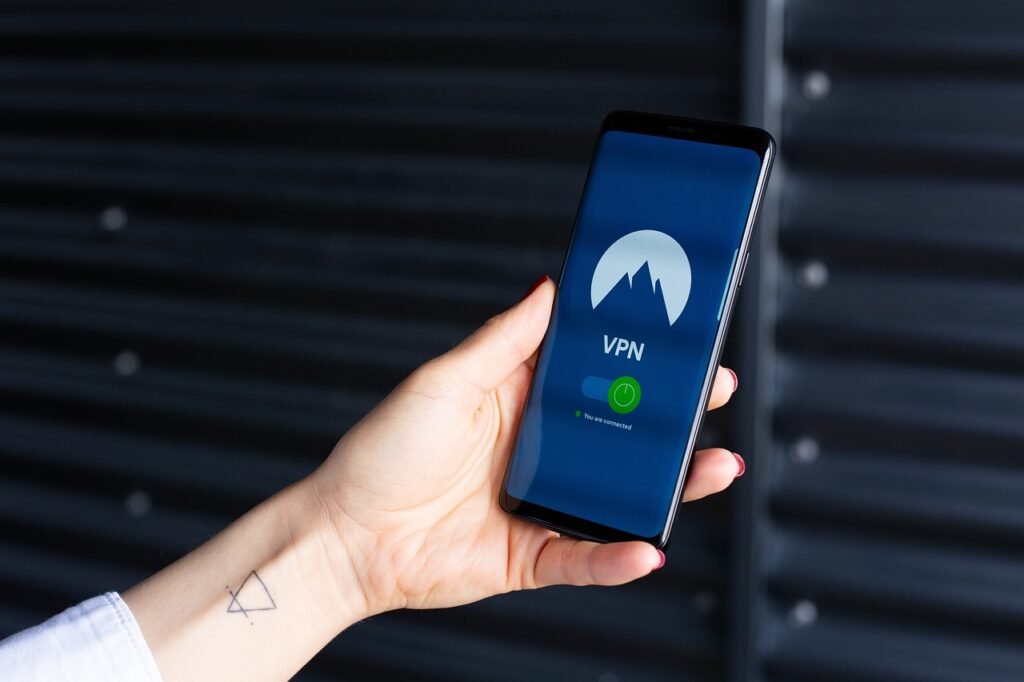
A VPN creates an encrypted connection between your device and a remote server, masking your IP address and protecting your data from eavesdropping.
- Benefits of VPN:
Encrypts your internet traffic, making it unreadable to hackers.
Hides your IP address, making it difficult to track your online activity.
* Allows you to bypass geographic restrictions and access content from other countries.
- Choosing a VPN: Select a reputable VPN provider with a strong privacy policy and a proven track record of security.
- Using a VPN: Install the VPN software on your device and connect to a server before accessing the internet.
Securing Public Wi-Fi Connections
Avoiding Sensitive Transactions on Public Wi-Fi
Public Wi-Fi networks are often unsecured, making them risky for sensitive activities like online banking or shopping.
- Alternative: Use your mobile data connection or wait until you have access to a secure Wi-Fi network to perform these tasks.
- Risks: Data transmitted over unsecured networks can be easily intercepted by hackers.
Using HTTPS Websites
HTTPS (Hypertext Transfer Protocol Secure) encrypts the communication between your browser and the website you’re visiting.
- Identifying HTTPS: Look for the padlock icon in the address bar of your browser, which indicates that the website is using HTTPS.
- Browser Extensions: Install browser extensions like HTTPS Everywhere to automatically enable HTTPS on websites that support it.
Disabling File Sharing and Network Discovery
When connected to public Wi-Fi, disable file sharing and network discovery to prevent unauthorized access to your files and devices.
- Windows: In Windows, go to Network and Sharing Center and disable network discovery and file sharing.
- macOS: In macOS, go to System Preferences > Sharing and uncheck all sharing services.
Using a Personal Hotspot
If you need a secure internet connection while on the go, consider using your smartphone’s personal hotspot.
- Benefits: Your personal hotspot provides a secure, encrypted connection that is less vulnerable to hacking than public Wi-Fi.
- Data Usage: Be mindful of your data usage when using a personal hotspot, as it can quickly consume your data allowance.
Regular Security Maintenance
Keeping Router Firmware Updated
Router firmware updates often include security patches that address vulnerabilities. Regularly check for and install these updates.
- Automatic Updates: Enable automatic firmware updates if your router supports them.
- Manual Updates: If automatic updates are not available, visit your router manufacturer’s website to download the latest firmware and install it manually.
Reviewing Connected Devices
Periodically review the devices connected to your Wi-Fi network to identify any unauthorized devices.
- Router Configuration: Access your router’s configuration page to view a list of connected devices.
- MAC Address Filtering: Use MAC address filtering to allow only authorized devices to connect to your network.
Changing Passwords Regularly
Change your Wi-Fi password and other important passwords regularly to prevent unauthorized access.
- Password Manager: Use a password manager to generate and store strong, unique passwords for all your accounts.
- Frequency: Aim to change your Wi-Fi password every 3-6 months.
Educating Users About Security Best Practices
Make sure everyone who uses your Wi-Fi network understands the importance of security and follows best practices.
- Training: Provide training on how to identify phishing emails, avoid suspicious websites, and protect their personal information.
- Policies: Implement clear security policies for your organization and ensure that all employees are aware of and adhere to them.
Conclusion
Securing your Wi-Fi network is an ongoing process that requires vigilance and proactive measures. By understanding the threats, implementing the security measures outlined in this guide, and staying informed about the latest security best practices, you can significantly reduce your risk of being compromised. Remember that a strong security posture is a shared responsibility, and it’s essential to educate all users about the importance of protecting their data and devices. Prioritizing secure Wi-Fi is not just about protecting your personal information, it’s about safeguarding your digital life.







