
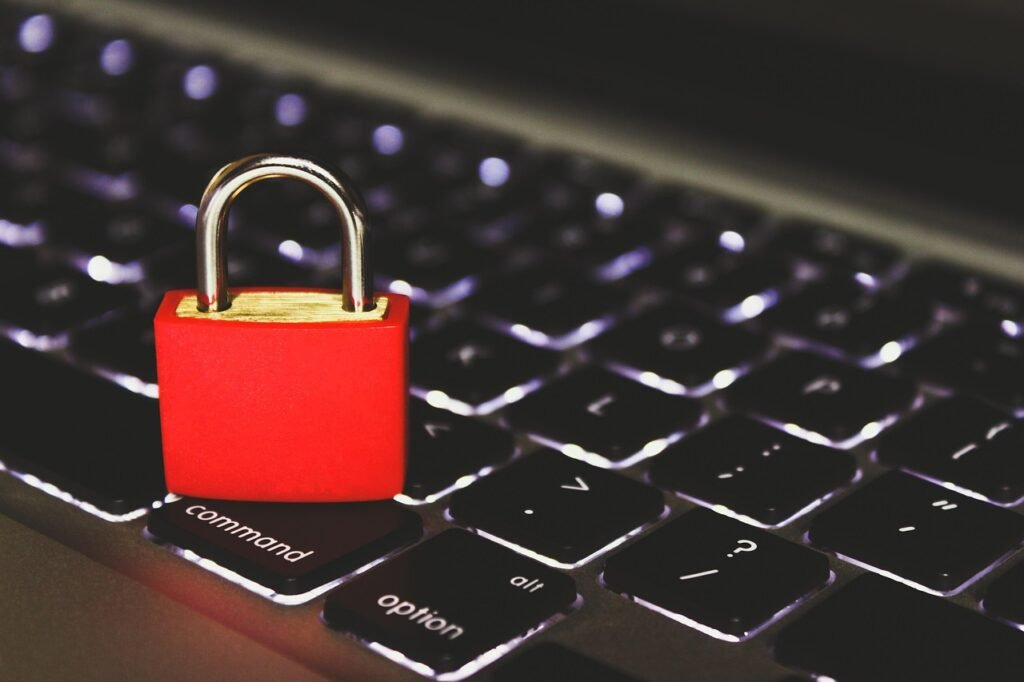
It’s easy to overlook the importance of digital cleanliness in our increasingly connected world. Just as we maintain personal hygiene to stay healthy, we need to practice “cyber hygiene” to protect ourselves from digital threats. Think of it as flossing your digital teeth – a simple, regular practice that can prevent serious problems down the line. This blog post will walk you through a comprehensive cyber hygiene checklist, empowering you to safeguard your data and maintain a secure online presence.
Strong Password Management
Strong passwords are the first line of defense against unauthorized access. A weak password is like leaving your front door unlocked.
Create Complex Passwords
- Length: Aim for at least 12 characters. Longer is better.
- Complexity: Use a mix of uppercase and lowercase letters, numbers, and symbols.
- Avoid Personal Information: Don’t use easily guessable information like your name, birthday, or pet’s name.
- Example: Instead of “password123”, try something like “S@f3_H@v3n.2024!”.
Use a Password Manager
- Benefits: Password managers generate and store strong, unique passwords for all your accounts. You only need to remember one master password.
- Popular Options: LastPass, 1Password, Bitwarden, and Dashlane are all reputable password managers.
- Example: Let’s say you use 20 different websites and services. Manually creating and remembering 20 strong passwords is daunting. A password manager handles this effortlessly.
Enable Multi-Factor Authentication (MFA)
- What it is: MFA adds an extra layer of security by requiring a second form of verification, such as a code sent to your phone, in addition to your password.
- Why it’s important: Even if someone gets your password, they won’t be able to access your account without the second factor.
- Practical Example: When logging into your bank account, you might be asked to enter a code sent via SMS to your mobile phone.
Software Updates and Patch Management
Keeping your software up to date is crucial for security. Updates often include patches for newly discovered vulnerabilities.
Regularly Update Operating Systems
- Importance: Operating system updates fix security holes that hackers can exploit.
- Automatic Updates: Enable automatic updates for your operating system (Windows, macOS, Linux) to ensure you always have the latest security patches.
- Example: Microsoft regularly releases updates for Windows to address security vulnerabilities. Installing these updates promptly can prevent malware infections.
Update Applications and Plugins
- Third-Party Applications: Software like web browsers (Chrome, Firefox, Safari), office suites (Microsoft Office, LibreOffice), and plugins (Adobe Flash, Java) should also be updated regularly.
- Vulnerability Management: Outdated applications are a common target for attackers.
- Practical Tip: Set applications to automatically update whenever possible. For those that don’t, make it a habit to check for updates weekly.
Mobile Device Updates
- Mobile Security: Keep your smartphone’s operating system (Android, iOS) and apps updated.
- App Store Updates: Regularly check the app store for updates to installed applications.
- Example: Android security patches are released monthly by Google. Installing these patches is essential for protecting your device from malware and vulnerabilities.
Data Backup and Recovery
Data loss can occur due to hardware failure, malware infections, or accidental deletion. Regular backups are essential for data recovery.
Implement a Backup Strategy
- 3-2-1 Rule: Follow the 3-2-1 backup rule: have three copies of your data, on two different media, with one copy stored offsite.
- Backup Frequency: How often you back up your data depends on how frequently it changes. Important documents should be backed up daily, while less frequently used files can be backed up weekly or monthly.
- Types of Backups: Consider cloud backups, external hard drives, or network-attached storage (NAS) devices.
Test Your Backups
- Verification: Regularly test your backups to ensure they are working correctly and that you can restore your data when needed.
- Recovery Process: Practice restoring files from your backups to familiarize yourself with the recovery process.
- Example: Simulate a data loss scenario and try restoring files from your backup. This will help you identify any issues and refine your backup strategy.
Secure Your Backups
- Encryption: Encrypt your backups to protect your data from unauthorized access.
- Physical Security: Store physical backup media in a secure location to prevent theft or damage.
- Example: Encrypt your external hard drive containing backups with a strong password.
Network Security
Securing your network is vital for protecting your devices and data from external threats.
Secure Your Wi-Fi Network
- Strong Password: Use a strong, unique password for your Wi-Fi network. Avoid using the default password provided by your internet service provider.
- Encryption: Enable WPA3 (Wi-Fi Protected Access 3) encryption on your router. If your router doesn’t support WPA3, use WPA2. Avoid using WEP (Wired Equivalent Privacy), as it is easily cracked.
- Guest Network: Create a separate guest network for visitors to prevent them from accessing your primary network.
Firewall Protection
- Enable Firewall: Ensure that your firewall is enabled on your computer and router.
- Firewall Configuration: Configure your firewall to block unauthorized access to your network.
- Example: Most operating systems have built-in firewalls that can be easily enabled.
VPN Usage
- Secure Connections: Use a Virtual Private Network (VPN) when connecting to public Wi-Fi networks to encrypt your internet traffic and protect your data from eavesdropping.
- Privacy Protection: VPNs can also help protect your privacy by masking your IP address.
- Example: When using public Wi-Fi at a coffee shop, connect to a VPN to encrypt your data and prevent hackers from intercepting your traffic.
Safe Browsing Habits
Practicing safe browsing habits is crucial for avoiding phishing scams and malware infections.
Be Wary of Phishing Emails
- Recognize Phishing: Learn to recognize phishing emails, which are designed to trick you into revealing sensitive information.
- Red Flags: Look for poor grammar, spelling errors, suspicious links, and requests for personal information.
- Example: If you receive an email from your bank asking you to update your account information by clicking on a link, be suspicious. Contact your bank directly to verify the email’s authenticity.
Avoid Suspicious Websites
- Reputable Sites: Only visit reputable websites with secure connections (HTTPS). Look for the padlock icon in the address bar.
- Malware Downloads: Avoid downloading software from unofficial sources, as it may contain malware.
- Example: Before downloading software, research the source and check reviews to ensure it is legitimate.
Use a Reputable Antivirus Software
- Real-time Protection: Install a reputable antivirus software and keep it up to date.
- Regular Scans: Perform regular scans of your computer to detect and remove malware.
- Example: Consider using antivirus software like Bitdefender, Norton, or McAfee, all of which provide real-time protection against malware.
Conclusion
Implementing a strong cyber hygiene routine is an ongoing process. Regularly reviewing and updating your security practices will help you stay ahead of emerging threats. By following this checklist, you can significantly reduce your risk of becoming a victim of cybercrime and protect your valuable data. Remember, a little effort goes a long way in securing your digital life.







